SPF, DKIM and DMARC for cold email: how to set them up
Set up SPF, DKIM and DMARC step by step for Google Workspace or Microsoft 365, so inboxes trust your cold email. Exact values and how to check it worked.
SPF, DKIM and DMARC are three public settings on your domain that prove your emails really come from you. For cold email, set up SPF and DKIM before your first send, and add DMARC 48 hours later, which is the wait Google asks for. It's a few copy-and-paste changes.
Why cold email needs all three
You send a good email and it lands in spam, or it comes back saying "This email has been rate limited because it is unauthenticated." That's Gmail saying it can't confirm the email came from you. Anyone can type your company's name into the "From" line, so inboxes check.
Think of a company letter:
| Setting | Everyday version | What it does |
|---|---|---|
| SPF | A list of approved couriers | Names the services allowed to send email as your domain |
| DKIM | A wax seal | Adds a signature to each email, showing your domain sent it and nobody changed it |
| DMARC | A note to the post room | Tells inboxes what to do with an email that fails, and can send you reports |
Here's what the big inboxes require:
| Sending to | Every sender | Bulk senders |
|---|---|---|
| Personal Gmail | SPF or DKIM | All three, over 5,000 emails a day |
| Yahoo | SPF or DKIM | All three |
| Personal Outlook.com | No fixed rule | All three, over 5,000 emails a day |
You probably won't send 5,000 a day, and these rules don't cover company inboxes on Google Workspace or Microsoft 365. Set up all three anyway. Google says "we recommend that you always set up SPF, DKIM, and DMARC", and Microsoft says "all senders benefit".
Before you start
- Access to your domain's DNS. DNS holds your domain's public settings. You change them where you bought the domain or where it's hosted.
- An admin account at your email provider. On Google Workspace, it has to be a super administrator.
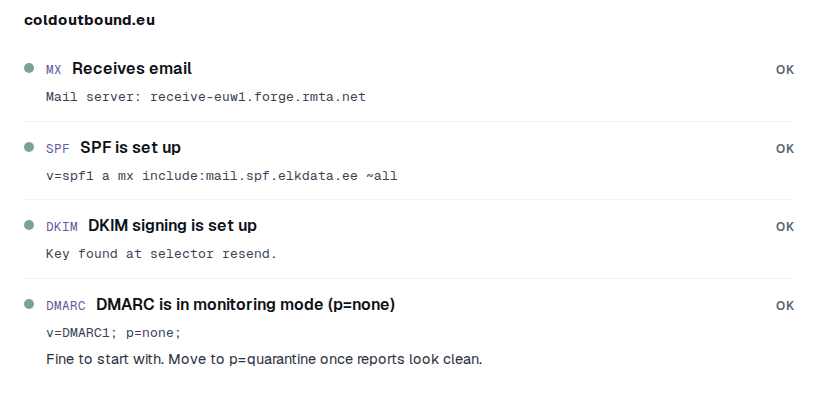
- A look at what you already have. Run your domain through the free DMARC checker, and skip any step that already shows OK.
If you send from an @gmail.com or @outlook.com address, you can skip this guide. Those domains belong to Google and Microsoft, and you can't change their settings.
Step 1: Add your SPF record
An SPF record is one line of text in your DNS, called a TXT record. Add a new record with these settings:
| Field | What to enter |
|---|---|
| Type | TXT |
| Host (or Name) | @, or leave it empty, which means the domain itself |
| Value | The line for your email provider, below |
| Email provider | Value |
|---|---|
| Google Workspace | v=spf1 include:_spf.google.com ~all |
| Microsoft 365 | v=spf1 include:spf.protection.outlook.com -all |
| Zoho Mail | v=spf1 include:zohomail.com -all |
| Zoho Mail, if you log in at mail.zoho.eu | v=spf1 include:one.zoho.eu -all |
| Fastmail | v=spf1 include:spf.messagingengine.com ?all |
The ending tells inboxes how to treat email from anywhere else. Use the one your provider gives you.
A domain can only have one SPF record. Two cancel each other out, so if you already have one, add to it. If another service also sends as your domain, one line covers both, like this: v=spf1 include:_spf.google.com include:amazonses.com ~all.
Step 2: Turn on DKIM
DKIM needs two things: your provider creates a key, and you publish it in DNS. Then your provider starts signing your emails.
Google Workspace
- In the Google Admin console, go to Menu, Apps, Google Workspace, Gmail, then click Authenticate email.
- Select your domain and click Generate New Record. Choose 2048, keep the prefix
googleand click Generate. - At your domain host, add a TXT record with the DNS Host name and TXT record value Google shows. The host starts with
google._domainkey. - Back on Authenticate email, click Start authentication. When it's working, the page says "Authenticating email with DKIM".
Google says this can take up to 48 hours, and until then the page may tell you to update your DNS records. If you only just turned on Gmail, you may have to wait 24 to 72 hours before you can create the key.
Microsoft 365
- Go to security.microsoft.com/authentication and open the DKIM tab.
- Find your domain and switch its toggle to Enabled. You'll get an error, which is expected because the DNS records don't exist yet. Click OK.
- Click your domain's row. Under Publish CNAMEs, copy the two values.
- At your domain host, add two records of type
CNAME, which point one name at another. The hosts areselector1._domainkeyandselector2._domainkey, each with the value Microsoft shows. - Wait a few minutes or longer. Then go back to your domain and turn on Sign messages for this domain with DKIM signatures. The status should say "Signing DKIM signatures for this domain".
Another provider: search its help pages for DKIM. The idea is the same: it gives you a record to publish, then you turn signing on.
Step 3: Add your DMARC record
Wait until SPF and DKIM have been working for 48 hours, which is what Google asks. Adding DMARC too early can cause delivery problems.
First, create a mailbox or group for the reports, such as dmarc-reports@example.com. They usually arrive once a day, and Google advises against using your own address.
Then add this record, with your own domain in the address:
| Field | What to enter |
|---|---|
| Type | TXT |
| Host (or Name) | _dmarc |
| Value | v=DMARC1; p=none; rua=mailto:dmarc-reports@example.com |
p=none means "take no action, just report". rua is where the reports go.
Some hosts add your domain to the Host field by themselves, and some need you to type _dmarc.example.com. After saving, check that the name isn't doubled.
Check it worked
- Run your domain through the DMARC checker again. You want OK on all four lines. It remembers each result for an hour, so a fix can take that long to show.
- Send a real email to a Gmail address that isn't yours. Google says you can't verify DKIM with a test message to yourself.
- Open it in that Gmail account, click More (the three dots next to Reply), then Show original. Look for
spf=pass,dkim=passanddmarc=pass.
Common mistakes
| What you see | Why | What to do |
|---|---|---|
| "More than one SPF record" | Two records start with v=spf1, so inboxes ignore both |
Merge them into one |
| "SPF doesn't include Google Workspace" | Your record lists other services but not your provider | Add your provider's include: entry before the ending |
| "No DKIM key found" | DKIM isn't on yet, or it uses an unusual name | Do step 2, or add your selector in the checker |
| Gmail says your From header "isn't aligned" | SPF or DKIM passed, but for a different domain than the one in your address | Turn on DKIM for the exact domain you send from |
| Gmail says the email is "rate limited because it is unauthenticated" | SPF and DKIM both failed | Do steps 1 and 2 for the domain you send from |
| "SPF has too many lookups" | Your record lists too many services. Inboxes stop after 10 lookups, and each include: uses at least one, plus any inside it |
Remove the services you no longer use |
How Coldoutbound helps
Coldoutbound sends through your own mailbox, so you don't add anything for Coldoutbound itself. Each mailbox's page has a Domain health card with these same checks and what to fix, so you see a problem before you send.
Read more: Gmail's sender guidelines, Yahoo's sender requirements, Outlook's sender requirements, Google on SPF, Microsoft on SPF, Google on DMARC.
Questions
I send cold email from a second domain. Does it need this too?
Yes. Each domain needs its own SPF, DKIM and DMARC. A subdomain needs its own SPF and DKIM, and it uses the main domain's DMARC unless it has its own.
Will this change how my normal email is delivered?
Not if your SPF record lists every service that sends as your domain. With p=none, DMARC asks inboxes to take no action, so it changes nothing yet.
Does p=none stop people faking my domain?
No. It only watches. Google recommends moving to quarantine or reject over time, once your reports show your own email passes.
What do I do with the DMARC reports?
They usually arrive once a day as XML files, which are hard to read as they are. Google suggests a dedicated mailbox, plus a service that specializes in DMARC if you want to study them.
Do these settings get me into the inbox?
No. They prove who you are, not that people want your email. Spam complaints and sending too fast can still hurt you.